How to use FacetEdu
A walkthrough of everything from registering your school to running report cards and managing your subscription. Looking for a quick answer instead? See the FAQ.
First time here? Set your school up in this order:
- Add your classes (e.g. JSS1A, JSS1B, SS2).
- Add your first term - see Terms & sessions below. Your very first term is set as “current” automatically.
- Add your subjects and assign a teacher to each one per class (on the Classes page).
- Enroll your students, each with at least one guardian's phone number or email.
- Set up a fee structure for each class and term, then generate invoices in bulk.
- Invite your staff - Admins, Teachers and Accountants.
- Finish with your school's branding, grading scale and payout account in Settings.
Prefer a guided walkthrough instead? Open your account menu (top right, once logged in) and choose Take a tour.
How-to videos
About a minute each, with captions - no sound needed.
Set up classes and school fees
Add your classes, set the term, create a fee structure and bill a whole class. · 0:52
Add or import your students
Find students fast, bulk-import your Excel list, or add one student. · 0:44
Take attendance
Mark absent or late in a tap; parents are told automatically, even after a network cut. · 0:50
Enter scores and get report cards
Record CA and exam scores; report cards build themselves as PDFs. · 1:16
Collect school fees
Pay links, part payments, automatic receipts and recording cash paid at school. · 0:45
The parent portal
Release results, post notices, and see what a parent sees on their phone. · 0:42
1. Getting started
Register your school from the homepage (“Register your school”) with a school name, a subdomain (this becomes yourschool.facetedu.com - your school's free permanent address), and your own name, email, and password. Whoever registers becomes the school's Owner automatically. A phone number is optional but recommended - it's only used to text you a reset code if you ever forget your password.
Not ready to commit? The live demo is a full, shared copy of FacetEdu seeded with a fake school - browse it, add students, mark attendance, enter scores. It resets every night, so nothing you do there is permanent, and no registration is required.
Once registered, log in any time at app.facetedu.com or your own school's address.
2. Staff & roles
Every staff account has one of these roles, and the sidebar only shows what that role can use:
| Role | Can do |
|---|---|
| Owner | Everything Admin can, plus the school's subscription/billing, custom domain, pass mark, grading scale, school logo, and payroll (salaries, approving each month's pay). There's exactly one path to becoming an Owner: registering the school. |
| Admin | Day-to-day school management: students, guardians, classes, subjects, staff, attendance, scores, and fee invoices. Everything except the Owner-only items above - Admins can't see salaries. |
| Teacher | Attendance, entering CA/exam scores (for the classes they lead and the subjects they teach), and viewing students and subjects. No access to Classes, Staff, Billing, or Settings, and no fees: teachers don't see invoices, fee status or balances. Teachers see a red medical-alert badge next to a child who has one, but not the child's health record. A teacher added to a hostel as a house parent also takes its roll call and asks for exeats. |
| Accountant | Fees, invoices, payments, transport and boarding fees, the store and payroll (preparing the month's pay; the Owner approves it). No scores, report cards or attendance. |
| Librarian | The library only: books, lending and returns, reservations, fines and shelf checks - plus clocking in, store requests and their own payslips. No fees, scores or student records. |
| Nurse (clinic) | The school clinic only: health profiles, sick-bay visits and the weekly clinic report - plus clocking in and store requests. A nurse can't see fees, scores, attendance or the staff list. |
Owners and Admins add staff from the Staff page.
3. Turning features on and off
FacetEdu only shows the parts your school uses, so a small day school isn't faced with hostel, bus or clinic screens. When you register, FacetEdu asks What does your school need? - pick Day school or Boarding school and fine-tune from there. The Owner can change it any time in Settings → Features.
- Always on: Overview, Students, Classes and subjects, Terms, Attendance, Scores and report cards, Fees and invoices, Guardians, Staff, Inventory and store, and Accounting.
- On to start with (switch off if you don't use them): Timetable, Staff attendance, Payroll and payslips, Needs your attention, and AI help.
- Off to start with (switch on when you need them): Hostel and boarding, School bus, Library, School clinic, School website, Multiple branches, Activities and electives, Admissions, Computer-based tests and Lessons and homework (both need the Student portal), the Parent portal and the Student portal.
A switched-off feature disappears from everyone's menu and its reminders and emails stop. Nothing is deleted - turn it back on and everything is exactly as you left it, and bills already sent to parents stay on their invoices. The nurse and librarian roles can only be given while the clinic or library is on. Multiple branches can only be switched off once just one branch is open. With Staff attendance off, payroll takes nothing off salaries for absence or lateness.
4. Install the app & working without network
FacetEdu installs on a phone or laptop straight from the browser - no app store, free. Once installed it opens from its own icon, full screen, and the phone screens work even with no network at all.
- Android (Chrome): after you sign in on a phone, FacetEdu offers Install at the top of the screen - tap it and confirm. You can also install any time from your name (top right) > Install the app, or Chrome's menu ⋮ > Install app.
- iPhone / iPad: open FacetEdu in Safari, tap Share, then Add to Home Screen, then Add. Install the app shows these steps with pictures.
- Laptop (Chrome or Edge): click the install icon at the end of the address bar, or your name > Install the app.
- Install it from the address you sign in at (your school's own address, or app.facetedu.com). If you later use a different address, install again there.
- What works without network: attendance (the register and QR scans), hostel roll call, clinic visits and bus check-ins on a staff login - open each one once while you have network, and after that it opens and works with no network. What you record is kept on the phone and sent by itself when the signal comes back; a yellow bar shows when you are working without network. Other pages show what they showed last time, or say there is no network.
- Students and parents: the portal offers Add at the top on a phone (on iPhone it shows the Share > Add to Home Screen steps). A test being written, a test handed in with no network and practice scores are kept on the phone and sent when the signal returns; a grey strip says “Saved on this phone, will send when online” with Send now.
- Save for offline: on a lesson, students can tap Save for offline to keep its notes and files (PDFs, pictures) on the phone - it then opens with no network, and costs no data the second time. In the library, e-books that are PDF or EPUB files can be saved the same way (books that are only a web page are read online). Saved lessons are listed under Lessons > Saved on this phone; remove any you no longer need. Videos and web links still need network.
- Sending after the app is closed (Android): on Android phones (Chrome or Edge) FacetEdu can send waiting records, a handed-in test and practice scores by itself once the network comes back, even if FacetEdu was closed - the next time it is opened it says what was sent. On iPhone and other browsers they are sent the next time FacetEdu is opened with network.
- Keeping saved work safe: FacetEdu asks the phone not to clear what it has saved when space runs low (Android agrees for apps you use, always once installed). On iPhone, Safari can clear a website's saved data if it isn't opened for about a week - adding FacetEdu to the home screen stops that. Clearing the browser's data by hand always removes it, so don't clear it while something is waiting to send.
- What needs network: signing in, payments, approvals (expenses, exeats, payroll), checking a gate pass and reports.
- Staying signed in: in the installed app you stay signed in - no automatic sign-out when the phone is locked, the laptop sleeps or there is no network. If the phone isn't used for 90 days it asks for your password again. In a normal browser tab you are still signed out after 30 minutes without use (but never just because the network dropped). Lost or stolen phone: Account settings > Sign out on all devices. Turning a staff account off, or changing the password, also signs it out everywhere at once. Parents and students in the installed app stay signed in the same way.
- Records not sent yet: a grey strip at the top shows what is waiting (for example “3 attendance marks”) with Send now. They are sent by themselves from any page as soon as there is network - you don't need to reopen the screen. FacetEdu won't sign you out automatically while something is waiting.
- Signing out: if records are still waiting and there is no network, FacetEdu asks first. If you sign out anyway they stay on the phone, safely, and are sent the next time you sign in on that phone with network - never as anybody else. On a shared phone, the next person sees that another staff member's records are waiting. Signing out does remove the saved copies of pages and lists, so the next person can't see your data.
5. Running your school from phones
You don't need a computer. Everything in FacetEdu works on an Android phone or an iPhone, and the daily jobs were made for phones first. Install it (see above) so it opens from its own icon and keeps working when the network drops.
- Every day on the phone: attendance (one tap per child, or scan ID cards), staff clock-in, hostel roll call, clinic visits, library lending, bus check-ins, lessons and homework, and parents paying fees by link. These keep working with no network and send by themselves later.
- Scores: use Enter scores - one class and one subject on one screen, with a number keypad. It's quicker than opening each student.
- Setting up: adding many students is quickest from a spreadsheet (Students > Bulk import). If you only have a phone, add them one by one, or ask a FacetEdu partner (or use a cyber café laptop) for the first upload - it's done once. Timetables can be built on a phone too; turn the phone sideways for a wider view.
- Wide tables (accounting, reports, the timetable) scroll sideways - swipe left on the table. Ask your school (“Tell me about my school”) gives the main figures without any table.
- No printer? Report cards, invoices and receipts are PDFs: email them to parents (free) or share them on WhatsApp. Print a whole class's report cards at a print shop from the PDFs when you need paper.
- Computer-based tests need a phone or computer for each student while they write. Students can use a family phone at home, or take turns on a few school phones - in exam room mode each student is signed out after handing in, ready for the next one.
- Saving data: screens you have opened before open from the phone, pictures are kept small, and lessons and e-books can be saved for offline so they cost no data the second time.
6. Fees & invoices
Owners and Admins set up a fee structure per class and generate invoices in bulk each term. Guardians pay by card - Paystack and Flutterwave are both built in - and a student's payment status updates automatically once a payment clears. Fees are for the Owner, Admins and the Accountant only - teachers don't see a student's invoices or fee status, and their copy of a student profile leaves fees out.
Every invoice can be downloaded, printed or emailed as a PDF. On a student's page, use Download invoice, Print or Email to guardian next to the invoice. After billing a whole class on the Classes page, use Print all invoices (one invoice per page), Download PDF or Email all to guardians. The PDF shows the fee breakdown, amount paid, balance, due date, the online payment link and the student's bank account for transfers (if one has been created). Guardians without an email address are listed so you can print theirs instead.
Part payments. On the payment link, parents can choose Pay full balance or Pay part(any amount from the school's minimum, ₦5,000 to start with). The invoice shows as part paid, each payment gets a receipt by email showing the balance, and the same link pays the rest later. Turn this off, or change the minimum, in Settings (next to card payments). Money paid at school can always be recorded in part: on the student's page press Record payment and type the amount received.
Fee reminders. In Settings, switch on Fee reminders to parents and choose how often (every week, 2 weeks or 4 weeks) and on which day. Each parent who still owes gets one email listing what each of their children owes, with a pay link. Reminders stop by themselves once the bill is paid, and you can skip small balances or bills that aren't due yet. Use Send reminders now for a one-off reminder; parents reminded in the last 3 days are skipped. Reminders are off until you switch them on.
7. Payroll & payslips
The Owner and the Accountant use Payroll in the menu. Salaries are private: Admins, teachers and other staff can't see them. Every staff member sees their own payslips under My payslips.
- Salaries (once): for each staff member, the basic salary, allowances added every month (housing, transport) and deductions taken every month (pension, PAYE tax, cooperative). Each can be an amount or a percentage - e.g. pension 8% of gross. Add the bank, account number and account name - Check account name confirms it with the bank. Copy from another staff member saves typing when many people earn the same.
- Advances and loans: a salary advance comes out of the next pay in one go; a loan comes out in monthly amounts until it is paid back. Both are taken off pay by themselves - never so much that net pay goes below zero. Money paid back in cash can be recorded too.
- Attendance (Settings tab): a day's pay is taken off for each day marked Absent in Staff attendance, and you can charge for late arrivals after a number of free ones. Leave, sick days and official duty are always paid.
- Each month: choose the month and press Prepare pay. Check each person - tap a name to add a bonus or one-off deduction, or change an amount for that month only. Press Recalculate near the end of the month to pick up the latest attendance.
- The Owner approves. The figures are then frozen. Send back for changes unfreezes them (the Owner then approves again).
- Pay staff: Download bank file and upload it on your bank's bulk payment page. Upload it as it is - don't open and save it in Excel first, or account numbers lose their first 0. Staff with no bank details are left out and listed so you can pay them another way.
- Lock the month once staff are paid. Every staff member gets their payslip by email (free) and in My payslips, and loan balances go down. A locked month can't be changed. All payslips (PDF) prints them all; Download for Excel gives the month's summary.
8. Accounting
The Owner and the Accountant use Accounting in the menu. It keeps the school's books on a cash basis: money is counted on the day it is received or paid. Most of it fills itself in - you only type what FacetEdu can't know.
What goes in the books by itself
- Fees and bus fees - every payment, online or recorded at school.
- Store sales - uniforms and books sold to students, when they are paid.
- Salaries - the month's net pay, on the day the payroll month is locked.
- Staff advances and loans - when given, and when paid back in cash. These show in the cash flow but not in profit and loss (the money is lent, not spent).
- Stock bought - stock received in Inventory with a price per unit.
- Bus costs - fuel, servicing and repairs logged on a vehicle with an amount.
Change the amount where it came from (the payment, the bus log); in Accounting you can only move it to another account or category. If a bus log is deleted, its entry goes too.
Setting up (Settings tab)
- Add each bank account and the cash box, with the amount in it on a day you know exactly - the first day of term or the last bank statement.
- Choose where automatic entries go: cash paid at school, online payments and salaries, and stock and bus costs.
- The Owner sets the approval limit - e.g. ₦50,000. Expenses the Accountant records above it wait for the Owner.
- Rename the categories to suit you, hide the ones you don't use, and add your own (e.g. Security guards).
Recording other money (Money in & out tab)
- + Expense: date, amount, category, which account paid, what it was for - and a photo of the receipt taken with the phone. It is saved on the phone first, so a weak network never loses it.
- + Money in: donations, hall rental, PTA levies - anything that isn't a fee.
- Move money: cash banked, or money moved between two accounts. It isn't income or an expense.
- The Owner gets an email when an expense waits for approval, and approves or rejects it from its details (tap the row). Waiting and rejected expenses don't count in balances or reports.
Bank statements
- From your internet banking, download the statement as CSV (or Excel, then File > Save as > CSV).
- On Bank statements, choose the bank account and the file. Check the preview, then upload.
- Lines with the same amount as an entry within a week are ticked off by themselves - and a Paystack settlement that equals a day's online fee payments too.
- For each line left: Match it to entries (tick several for a settlement; if the bank kept a small charge, record the difference as bank charges), Add to books (SMS alert charges, a transfer nobody recorded), or Ignore it.
- When every line is sorted, Difference shows None ✓ - the bank and the books agree.
Reports and budget
Reports has income vs expenses (month by month), profit and loss, cash flow (each account at the start and end of the period) and the budget, for any term or dates - on screen, as PDF with your logo, or for Excel. The End of term pack puts them together for the proprietor or board. On Budget, enter what each kind of expense may cost this term and the income you expect; spending shows against it as the term goes on.
Money in & out (every entry) lists every approved entry line by line for the period you choose. Pick Money in only, Money out only or both (with a running total), and optionally one account (e.g. just the bank) or one category. Download it for Excel (CSV) or as a PDF with your logo.
Closing a term
When a term ends, the Owner closes it on Close term. First approve or reject anything waiting, lock the payroll months and sort the bank statement lines - the page lists what's still open. After closing, nothing dated in the term can be added, changed or deleted, so the figures you reported stay true. A payment that arrives late for a closed term is put on the first open day. If something must change, the Owner can reopen the last closed term, giving a reason (it is kept in the history), then close it again.
9. Pocket money & tuck shop
Switch on Pocket money and tuck shop in Settings → Features, then open Tuck shop. Add the tuck shop keeper from Staff with the role Tuck shop - they see the tuck shop and nothing else.
- Settings: set the daily spending limit, when parents are told the balance is low, and the smallest and largest online top-up. To tap items at the counter, make an Inventory store (e.g. Tuck shop), give the items a selling price, and choose that store here - stock then goes down as things sell.
- Money in: parents top up from the parent portal (Pocket money → Top up) and pay on the same secure page as school fees; it shows in the wallet as soon as it is paid. Cash brought to school is recorded with Cash paid in on the Pocket money tab.
- Selling (Sell tab): find the student, check the photo, tap what they are buying (or type an amount) and press Sell. A sale can never go over the balance or the daily limit (a parent can set a lower limit). Only the Owner or an Admin can let one sale go over the limit. A mistake can be undone the same day. The counter needs network so the same money can never be spent twice.
- Parents see the balance and every purchase in the portal, and get one email when the balance runs low. Students see their own balance in the student portal.
- Money back and the books: when a child leaves, the Owner, an Admin or the Accountant presses Pay it all back. In Accounting, pocket money paid in and paid back are recorded but kept out of profit and loss - it is the families' money. Sales by day shows what the tuck shop sold.
10. Classes & subjects
Set up your school's classes (e.g. JSS1, SS2) and subjects from the Classes and Subjects pages, and assign a teacher to each subject in a class - that's what determines which gradebook entries a teacher can see and fill in.
11. Terms & sessions
A term (e.g. “First Term”) belongs to a session (e.g. “2025/2026”) - together they mark a billing and reporting period for your whole school, not a single class. Owners and Admins add terms from the Classes page, under “Academic terms”: pick a session and a term name from the dropdowns (First, Second or Third Term) - order is set automatically. Only pick “Other” in either dropdown if your school genuinely needs a session or term name outside that list, in which case you'll also set its order (1, 2, 3...) yourself.
Whichever term is marked current is the one everyone's fee structures, scores and report cards use - your first term becomes current automatically, and you switch to the next one yourself (“Set as current”) when it starts.
Because a term applies school-wide, the Term dropdown on the fee structure form (also on the Classes page) always lists every term you've added, regardless of which class you picked - it isn't filtered by class. Name terms after the term itself (“First Term”, “Second Term”), not a class, so that list stays easy to read. Made a mistake? Use Edit next to any term to rename it, or Delete to remove one that's never been made current.
12. Students & guardians
Enroll a student under a class and attach at least one guardian's phone number or email - that contact is who receives attendance and payment notifications, and who a report card gets emailed to. Every enrolled student gets a QR ID for attendance.
Download profiles: on a student's page, Download profile gives a one-page PDF with their personal details, class and class teacher, guardian, this term's attendance and fees (fees not on a teacher's copy), school bus and subjects. On the Students page, pick a class (or search) and use Download profiles (PDF) for everyone shown, one per page, or Download roster (Excel) for a list. Staff profiles work the same way from the Staff page: Profile (PDF) on each person, or Download profiles (PDF) and Staff list (Excel) for everyone.
Passport photograph: on a student's page, click the photo box beside their name (or Upload) and choose a picture - on a phone you can take one with the camera. FacetEdu cuts it to passport shape and makes it small, so any photo works. Use Change or Remove later. The photo is printed on the report card and the student's profile PDF. Only the owner and admins can add or change photos; other staff can see them.
13. Attendance
A teacher scans a student's QR code once on the Attendance page and it's marked present automatically - no roster to tick by hand. Absent or late can be set manually for a student who doesn't have their card on a given day.
Poor network? Open the Attendance page while you have network (with the app installed - see Install the app - it then opens even with no network). If it drops afterwards, keep marking or scanning: everything is saved on your device and sent automatically when the network returns. A yellow bar shows how many marks are waiting, with a Send now button. Parents of absent children are texted once - saving the same register again does not text them twice.
Term totals. Didn't take attendance every day? On the Attendance page open Term totals, pick the term and class, type how many days school opened and each child's days present, then save. Report cards, student profiles and the parent portal use these totals for that term. Leave a box empty to use the daily marks instead.
14. Timetable
Owners and Admins build the timetable from Timetable in the menu. Every teacher sees My timetable - their own week - and every class's timetable.
- Choose how your school day is organised (School day & options tab): One school day for everyone, or Different days for different sections - for example Nursery and Primary closing earlier than Secondary. With different days, add a day structure for each section and tick the classes that follow it.
- Choose how you take attendance: Once a day (the morning register or QR at the gate) or Every lesson (each subject teacher marks their own lesson).
- Set your periods and breaks with their start and end times and the days they run. We start you with a typical day (assembly, 8 lessons, short and long break) - change it to match your bell. A period can run on only some days, e.g. a short Friday.
- Fill in each class's week (Class timetables tab): click a box, pick the subject - the class's usual subject teacher is filled in for you - and optionally a room. FacetEdu refuses to put a teacher or a room in two places at the same time, even across sections with different bell times.
- Next term, open the new term and use Copy lessons to start from last term's timetable. Use Print to put a class or teacher timetable on the notice board.
Attendance every lesson: on the Attendance page, teachers see today's lessons, open one and mark who is there. The day's attendance is worked out for you - a child is absent for the day only if they missed every lesson, and late if they were late to the first - and the parent is texted once, not after every lesson. It works on poor network too.
15. Scores, grading & report cards
Teachers enter CA (continuous assessment) and exam scores per subject. FacetEdu turns those into a letter grade using your school's grading scale, and an overall PASS/FAIL using your pass mark - both configurable by the Owner on the Settings page, and both apply to every report card, past and future, the moment they're changed.
A student's report card stays pending until every subject has both a CA and an exam score in, then generates automatically as a PDF - with your school's own logo on it, if you've uploaded one in Settings - and can be emailed straight to a guardian.
Enter scores (in the menu under Academics) is the quick way: pick a class and a subject and type every student's CA or exam on one screen, then Save scores. The grey numbers are what is saved already; a box left empty keeps what is on file, so CA and exam can go in weeks apart. Teachers see only the classes they lead and the subjects they teach. One student at a time still works from the student's page (Report card > Record a score).
16. Needs your attention (School Intelligence)
Every night FacetEdu looks through your scores, attendance and fees and lists what needs a closer look at the top of the Overview page - each with the reason in plain words, so you know exactly why it is there. It is worked out from your own records with simple rules, so it costs nothing extra and works the same every night. Tap the title to fold the list away; it stays folded on that phone or computer, shows just the counts, and gets a red dot if something new needs acting on.
- Results: a student below the pass mark in 3 or more subjects, or whose average has dropped 10 or more points since last term.
- Attendance: in school less than 85% of the days this term, absent 3 or more school days in a row, or absences bunched on one weekday (often absent on Mondays, say).
- Classes & subjects: a class 10 or more points behind the other arms of the same year in a subject (JSS2B Mathematics against JSS2A and JSS2C), or one subject well below the class's other subjects.
- Fees: parents who usually pay after the due date and owe something now (so you can remind them early), and whether this term's fees are coming in faster or slower than at the same point last term.
Each alert is marked Act now, Keep an eye on or Good news. Open takes you to the student or page it is about. Mark as seen hides it from your list for 30 days (only for you) - it comes back if it is still true then, or sooner if it gets worse. Alerts clear by themselves once things improve.
Who sees what: teachers see the students and subjects of their own classes, the Accountant sees the fees alerts, and the Owner and Admins see everything. The nurse and librarian don't see this list.
The Owner or an Admin can press Check now after entering scores or marking a register, and change the levels (attendance %, days in a row, number of subjects, points) under Settings. The Owner gets a free summary by email every Monday morning - turn it off in the same Settings, or press Email me this week's summary now to see one straight away.
17. Report comments & AI help
Report comments lists every student in a class with this term's results, position and attendance next to their report card comment, so a teacher can write the whole class in one sitting. Pick the class and term, type, then Save to report cards - the comments appear on the report cards straight away, signed with your name (or the name you type). Teachers see the classes they lead or teach a subject in; the Owner and Admins also write the principal's comments.
With AI help on, press Draft the empty ones (or Draft this oneon a single student) and pick a tone - encouraging, balanced or firm. Claude drafts each comment from the student's results and attendance; drafts show in orange until you save. Read and edit every draft - you are the one signing it.
On the Overview, the Owner and Admins can press Write this term's summary for a one-page, plain-English summary of results, attendance and fees, written from FacetEdu's own figures. It is kept, so you can read it again any time; copy it into your board or PTA report. Each tab of Reports can be explained the same way (see Reports & trends).
CBT question drafts: on CBT tests → Question bank, press ✦ Write questions with AI, choose the subject, class and topic, how many objective and theory questions, how hard, and the style (class test, WAEC/BECE or JAMB). The drafts appear under AI drafts to check: read each one, fix anything wrong (always check the answer), then Approve - only then can they go into a test or practice.
Parent notices: when writing a notice (Parent portal → Notices), press ✦ Write it for me, type your rough points, pick friendly, formal or firm, and Claude writes a clear notice into the form. Gaps it can't fill (such as a missing date) show as [date] - fill them in, read it, then post.
Ask your school: open Ask your school in the menu and type a question in plain English - for example “Who has been absent 3 days in a row?”, “Which subjects are we weakest in?”, “How much fees did we collect this week?” or “How is Amaka Johnson doing?”. The answer comes from your own records with a table and a link to the page with more. Claude only works out which of FacetEdu's questions you mean - it never writes the numbers - and names are hidden from it. Teachers get answers for the classes and subjects they teach; only the Owner, Admins and the Accountant can ask about fees; the Accountant doesn't see results. Ask “Tell me about my school” (or “How is the school doing?”) for the whole school at a glance: students, staff, attendance, results, fees and what needs attention, each line linking to its page. If a question isn't one FacetEdu can answer yet, it lists every question you can ask, grouped (Attendance, Results, Fees and so on) - also under What can I ask?
- Daily limits: each person can use the question writer 6 times a day, the notice writer 20 times a day and ask 30 new questions a day (asking the same question again the same day is free), so no school runs past its allowance.
- Privacy: the AI never sees students' names (it sees S1, S2... and he/she), phone numbers, fees or health records. The summary uses totals only. Question drafts are told only the subject, class and topic; for notices, names, phone numbers and emails are swapped for codes before sending and put back after.
- Allowance: each school has a monthly AI allowance; if it runs out, AI help pauses until the 1st and you type comments as usual.
- Off switch: the Owner can turn AI help off in Settings → Features. The Report comments page keeps working without it.
18. Reports & trends
Reports shows how the school is doing term by term, from what you already record. Pick a term and how many terms to compare with, then a tab:
- Results - average score, how many passed (average at or above your pass mark) and how many got 5 credits including English and Maths, by class and term by term.
- Subjects - best and weakest subjects, a subject-by-class table coloured red, amber and green, and each class and subject with its teacher against the other classes of that year.
- Students moving - who improved or dropped by 5 points or more since last term (and in which subject), who is below the pass mark in several subjects, and the top 10.
- Attendance - by class, week by week against last term, by day of the week, and students below your target (the one set for Needs your attention).
- Fees - billed and collected per term and class, how fast bills were paid compared with last term, what is still owed by how late, and who owes most.
- Enrolment - students at the start and end of each term, who joined and who left (and why), and class sizes. When you mark a student Inactive on their profile, choose why they left.
- Branches - with Multiple branches on, every branch side by side. The Branch picker shows one branch or all of them.
Excel, PDF and Print work on every tab. The Owner and Admins also get the termly report for the board: every tab in one PDF or Excel file for the proprietor or board, without lists of named students. With AI help on, Explain these figures has Claude write a short, plain-English reading of the report - it sees the figures only (no student names; teachers appear as Teacher A, Teacher B). The explanation is kept, so reading it again is free, and the board summary goes at the top of the board report.
- Who sees what: the Owner and Admins see everything; teachers see results and attendance for the classes they lead or teach (only their own subjects in classes they don't lead); the Accountant sees Fees.
- Credits: on the Results tab, How credits are counted sets the credit mark (50 by default, like WAEC C6), how many credits make a good pass and whether English and Maths must be among them.
- Older terms: from now on FacetEdu remembers which class a student was in when each score was saved, so last year's results stay under last year's classes after promotion. Scores saved before this show under the student's class today.
- Off switch: the Owner can turn Reports and trends off in Settings → Features.
19. Computer-based tests (CBT)
Turn on Computer-based tests (and the Student portal) in Settings → Features, then open CBT tests in the menu. Teachers see the classes and subjects they teach; the Owner and Admins see everything. Students sit the tests in the student portal - on their own phone or on the school's computers - with their admission number and PIN.
- Fill the question bank on Question bank: choose the subject, the class (JSS1 covers JSS1A, JSS1B...) and a topic, then type the question. Objective: two to five options, tick the right one, and add why it is right (students see it after the test closes). Theory: a short written answer you mark yourself - add a marking guide. A small picture (a diagram or graph) can go with any question. To add many at once, Upload from a spreadsheet: download the template, fill it in Excel, save as CSV and upload.
- Make a test on Tests → New test: name, subject, classes, when it opens and closes (Lagos time) and the time allowed. Each student's clock starts when they press Start; a student who starts late only gets until the closing time. Questions and options are shuffled for each student unless you untick it. Choose when students see their score: as soon as they hand in, when the test closes, or not in the portal.
- Add the questions: Choose from the bank, or pick 10 (or any number) at random from a topic. Press Publish - students in those classes see it under Tests in the portal, and can start once it opens.
- While they write: answers are saved on the phone and sent every few seconds. If the network drops the test carries on; if it is still off when time is up, the answers wait on the phone and are handed in when the signal is back (marked Sent late so you can decide). On Results you can give a student 10 more minutes or let them Start again (a broken phone, the wrong student signed in). Leaving the test screen is counted and shown to you.
- Marking: objective questions are marked the moment a student hands in. For theory, press Mark next to a student, read the answer with your marking guide and type the mark (half marks are fine). How each question went shows the questions most students got wrong - worth teaching again.
- Send to gradebook: choose the CA or exam column. Each result is turned into a score out of that column (for example 10 out of 12 becomes 33 out of 40) and appears on the report card. Students who didn't take it, or whose theory isn't marked yet, are left as they are. If a student already has a score there, FacetEdu asks before replacing it.
- Exam room (computer lab, or a class writing on phones together): open the test and choose Exam room → Use a room code. Write the 6-digit code on the board or press Show big for the projector - students type it to start, so only those in the room can begin (carrying on after a dropped network doesn't need it again). The screen updates every 10 seconds: who hasn't started, how many questions each student has answered, their time left, and phones that have gone quiet (offline or closed). Time up - hand in for everyone ends the test for all. On a shared computer the student is signed out 15 seconds after handing in, ready for the next one.
- Practice (WAEC/JAMB style): in the bank, tick Students can practise with this on a question (or Allow the ones shown for practice for a whole topic; the spreadsheet has a Practice column). Students choose a subject, a topic and how many questions under Tests → Practice: Learn shows the right answer and why after each question, Timed works like the real exam. Choosing two to four subjects makes a JAMB-style mock under one clock. Practice is never marked and never reaches the report card. Students see the answers, so keep questions you want for marked tests out of practice - a question in a test that hasn't closed is left out of practice until it closes. The Practice tab shows who in each class is practising and the class's hardest topics.
- Questions can't be changed after the first student starts a test - fix a typo in the wording any time, though.
20. Lessons & homework
Turn on Lessons and homework (and the Student portal) in Settings → Features, then open Lessons & homework in the menu. Teachers see the classes and subjects they teach; the Owner and Admins see everything.
- Notes and videos: Add notes or Add a video, choose the subject and classes, type or paste the notes, and add video links (YouTube or Google Drive - one per line). After saving, Add a PDF or picture (up to 2 MB each) for worksheets. Choose when students see it - now, or a later date for next week's lesson.
- Homework: Set homework with what to do, the hand-in date and what it is marked out of. Untick Take late work if you won't accept it after the date. Tick Email parents when it goes up to tell families (email only - free).
- Students see it under Lessons in the student portal - homework to do comes first. They hand in by typing the answer or taking up to 3 photos of their exercise book (photos are shrunk on the phone, so they send quickly on mobile data), and can hand in again until you mark it.
- Who has seen it: each item shows who has opened it and who has handed in, late or on time.
- Marking: press Mark next to a student, look at their answer or photos, type the mark and feedback. Parents see the mark and your feedback. Send back to do again asks the student to redo it (allowed even after the date).
- Marks to CA: Send marks to CA turns each mark into a CA score (8 out of 10 becomes 32 out of 40) for this term. Only marked work is sent; FacetEdu asks before replacing a CA score that is already there.
- Parents see each child's homework under Homework in the parent portal: what is due, what was handed in, the mark and your feedback, and the latest lessons with whether the child opened them.
21. Activities & electives
For clubs and activities that cost extra and that not every student takes (chess, swimming, coding, music...). Turn on Activities and electives in Settings → Features, then open Electives in the menu. The class fee stays the same for everyone; each elective a student takes is added as its own line on their term invoice, so one family pays for one elective and another for three - on one bill.
- Add the electives for the term on the Electives tab: name, price for the term (0 = free), which classes can take it, the most students it can take and who is in charge. Set the most electives one student can take (3 to start with).
- Choices: on the Choices tab pick a class and tick each student's electives. Or let parents choose in the parent portal: tick Parents choose and set the dates. Parents see the prices and their total as they tick, and full electives can't be picked. After the closing date only staff can change choices.
- Billing: on the Billing tab press Add elective fees to invoices. Each elective becomes a line on the student's term invoice (a student with no term invoice gets a separate electives invoice), and parents with an email are told (free). Running it again never charges twice. After the first time, new choices are billed straight away.
- Dropping an elective that isn't paid for takes its line off the invoice. One that is already paid can only be dropped by staff, keeping the charge - refund the parent or carry it to next term yourself.
- Lists: the Lists tab shows who is in each elective, with the parent's phone number, ready to print for the teacher or coach. Teachers can see the lists; the Accountant can bill.
22. Staff attendance
Every staff member - teachers, admins and accountants - clocks in when they arrive and out when they leave, from Staff attendance in the menu. A reminder shows on the Overview until they do. It works on poor network: the tap is saved on the phone with the time it was made and sent when the network returns.
- Set your resumption time and how many minutes after it count as late (Settings tab). We start you at 07:30 with 10 minutes' grace.
- Choose how staff clock in: from their own phone, or only by scanning the staff-room QR poster - so nobody clocks in from home. Print the poster from the Settings tab; staff scan it with their phone camera. Make a new poster any time and the old one stops working.
- Check the staff register each morning: who is in, who is late, who isn't in yet (with a button to call them). Record leave, sick, official duty or absent - for one day or a date range, with a note.
- Arrange lesson cover: the Lesson cover tab lists the lessons of every teacher who is away (or not in yet) from the timetable, with the teachers who are free at that time. Pick one - the lesson appears in their lessons for the day, so they can take its register.
- Monthly report: days in, late, absent, leave and average clock-in per staff member, with a CSV download that opens in Excel. Absences and late arrivals feed straight into Payroll.
23. School bus (transport)
Transport is included in your FacetEdu plan at no extra cost. Owners and Admins set it up from Transport in the menu; Accountants can see it and handle bus fees and fuel records; teachers see each student's bus route on the student's page.
- Add your buses (Vehicles tab) with plate number, seats and the expiry dates for insurance, vehicle licence and roadworthiness, plus the next service date. We email the Owner and Admins 30, 14, 7 and 1 day before each date.
- Add drivers and bus aunties with their phone numbers (and the driver's licence expiry).
- Create a route - choose its bus, driver and bus aunty, and set the bus fee per term. You can set a cheaper one-way fee for children who ride only in the morning or only in the afternoon.
- Add the stops in pickup order, with pickup and drop-off times. A far or near stop can have its own fee.
- Opt in the children whose parents want the bus - the bus is optional, and no child is on a bus or billed for it until you opt them in. Use the Who uses the bus tab to see every student, filter by class, tick the children and choose their stop and whether they ride both ways. You can also opt a child in or out from their student page. When a parent stops the service, click Opt out: the child comes off the bus list from that day and isn't billed next term (bus invoices already sent are kept). The route warns you when more children ride than the bus has seats.
- Bill bus fees (Bus fees tab): choose the term and create one invoice per rider. They work like any other invoice - download, print, email, pay link and receipts. Run it again any time; children already billed are skipped. Children who joined mid-term can be charged only for the weeks left.
- Set up the bus phone. On the route page, create a bus phone link. Open it on the bus aunty's or driver's phone and enter the 4-digit PIN shown - no email or login needed, and it only shows that route's trip screen. If the phone is lost or someone leaves, turn the link off and create a new one.
Running a trip
On the bus phone, tap Morning pickup or Afternoon drop-off. The children expected on that trip are listed by stop. Scan each child's ID card (the same QR card used for attendance) or tap Board; a second scan, Arrived at school or Drop off marks them off the bus. The phone warns when a child isn't on this route. With no network, check-ins are saved on the phone and sent automatically when the network returns. Finish trip records any child who didn't board as “didn't ride”.
The Today tab shows every route's morning and afternoon trip - who rode, who didn't, and who is still on the bus. Children with an overdue bus fee are flagged so the school can follow up; nobody is blocked from the bus automatically. The Fuel & service tab records spending per bus and shows the cost per rider, which helps when setting bus fees.
Live bus tracking
Switch on Live bus tracking in Settings → Features (it needs School bus). Then:
- Put the school and the stops on the map. Transport → Live → Tracking settings → Place the school. On each route's page, under Stops on the map, tap Place next to a stop and tap the map where the bus stops. Or let the bus aunty tap Save stop here on the bus phone while standing at the stop.
- Run trips as usual on the bus phone. When a trip starts, the phone asks to use its location - tap Allow. Keep the trip screen open (the screen stays on by itself); locking the phone stops the sharing. It stops by itself when the trip is finished.
- Parents open School bus in the parent portal to see their child's bus and how far away it is, and can turn on phone notifications there. They are told when the bus is about 5 minutes from their stop, when their child gets on, and when they are dropped off or arrive at school - by phone notification, or email for parents without notifications. SMS/WhatsApp can be switched on in the tracking settings (charged by usage).
- Transport → Live shows every bus on the map, with Running late (behind the stop times), No signal and Not sharing location flags, and routes that haven't started on time. Owners and admins get an email when a bus is running late. Open any trip to see its route on the map.
24. Hostel (boarding)
For boarding schools: Hostel in the menu. The Owner and Admins set it up and approve exeats. Teachers added to a hostel as house parents (house master / mistress) take its roll call and ask for exeats. The Accountant adds the boarding fee. Any teacher can check a gate pass.
- Hostels, rooms and beds: on Hostels & beds, add each hostel (boys, girls or both), its boarding fee per term, and how many rooms and beds it has - you can rename rooms, add beds and switch off a broken bed later. Tick the staff who are its house parents.
- Give each boarder a bed on Boarders: pick the student, the hostel and a free bed. Beds are given per term - at the start of a new term, Same beds as last term puts everyone back where they were. Move changes a bed and keeps the old one in the student's History; Take out frees the bed when a child becomes a day student or leaves.
- Boarding fee on the term invoice: on Boarding fees, choose the term and press Add boarding fees. The fee is added as a line on each boarder's school fees invoice for that term, so parents get one bill and pay it the usual way (online, bank transfer or at school). A boarder with no term invoice yet gets a separate boarding invoice. Each child is charged once per term, however often you press it. Best done after you have created the term's school fees invoices. Payments show in Accounting as school fees (or boarding fees for a separate boarding invoice).
- Night and morning roll call: the house parent opens Roll call on their phone, picks Night or Morning and taps Present, Absent, On exeat or Sick bay for each boarder (children out on exeat or kept in the sick bay are suggested). Mark the rest present saves time. Once roll call has been opened on the phone with network, it works with no network: the list and the marks are kept on the phone and sent when the signal comes back. Finish roll call lists anyone absent or not marked and emails the Owner, Admins and house parents straight away.
- Exeats (permission to leave school): the house parent fills in the reason, when the child leaves and must be back, and who is picking them up. The Owner or an Admin approves or turns it down (Admins can also save and approve in one step). Approval makes a gate pass PDF with a QR code - it is emailed to the parent and can be printed.
- At the gate: scan the QR code with any phone camera. It says APPROVED or STOP - no login needed to check. A signed-in staff member (or the Gate tab, which also takes the 6-character pass code) taps Let out, and later is back when the child returns. A pass can be used from 6 hours before the leaving time until the “back by” time.
- Parent alerts: the parent is emailed (free) when the exeat is approved, when the child leaves, when they are back, and if they are late back. Tick Also text the parent to send an SMS / WhatsApp too - texts cost extra. If a child is not back by the “back by” time, the parent, the Owner, Admins and house parents are told within 15 minutes. Parents can also ask for an exeat in the parent portal - it arrives on Exeats to approve like any other.
- Meal roll calls: on Roll call there are also Breakfast, Lunch and Dinner (choose which in Settings). They work the same way, offline too. A missed meal emails the house parents only; a boarder who misses 3 meals in 3 days shows on Needs your attention.
- Visiting days (Visitors tab): the Owner or an Admin adds the date and times; parents of boarders are emailed (free) and see it in the parent portal, where they can name who is coming. At the gate, find the boarder, tap Sign in for an expected visitor or type someone else's name, and tick when you have checked their ID. FacetEdu shows whether the visitor is the guardian, was named by the parent, or is not on the list. Sign them out when they leave. Visits on other days are recorded as off-day visits.
- Property checklist (Property tab): at resumption, open each boarder and count what they brought against the school's list (set the list in Settings). At departure, count what they take home - anything missing is shown straight away. Parents see the checklist in the portal. Print gives a paper copy.
- Room inspections (Inspections tab): score each room 0 to 5 on your list (beds made, floor clean...). The ranking shows the cleanest rooms and hostels this term; a room that scores low twice in a row shows on Needs your attention.
- Incident log (Incidents tab): record what happened, who was involved and the action taken. It is private to the Owner, Admins and that hostel's house parents. A serious incident emails the Owner and Admins at once. Share with parent lets you write a message for the family - they get it by email and in the portal; your notes stay private.
- Needs your attention shows the boarding items under Boarding: boarders missing at last night's roll call, a roll call not taken, missed meals, exeats waiting or late back, missing property, low room scores and open serious incidents. House parents see their own hostel's.
25. School clinic
The school nurse, the Owner and Admins use Clinic in the menu. Add the nurse from Staff with the role Nurse (clinic) - they see the clinic and nothing else. Health details are private: teachers and accountants can't open them.
- Health profiles: for each child, record blood group, genotype, allergies, health conditions, regular medicine, an emergency contact, the family doctor or hospital, and immunisations. The list shows who has no profile yet. Download health record gives a one-page PDF. The basics (blood group, genotype, allergies, conditions, emergency contact) also appear on the student's Download profile PDF for Owners and Admins; teachers' copies show only the medical alert.
- Medical alert for teachers: one short line, e.g. “Asthma - inhaler in school bag”. Teachers see a red badge next to the child's name on the student list, the register and the lesson register, and can tap it to read the line. That's all they see.
- Clinic visits: choose the child (their allergies and alert show straight away), write what is wrong, take the temperature and any other checks, say what you did and what medicine you gave, then what happened next - back to class, rested in the sick bay, sent home or referred to a hospital. Visits are saved on the phone first, so they are never lost on a poor network.
- Medicine from the store: medicine given comes out of Inventory stock by itself, recorded against the child. Ask your store-keeper to create a store called Sick bay or Clinic and receive the medicines into it; the nurse then only sees that store's stock. Medicine that isn't from the store (e.g. a child's own inhaler) can be typed in.
- Telling the parent: when a child is sent home or referred, the parent is emailed straight away (free). Tick Also send an SMS / WhatsApp to text them as well - texts cost extra. You can tell the parent again from the visit, and download a visit slip PDF for them.
- Weekly report: visits by day, class and complaint, children seen three or more times, and medicine used - as a PDF or for Excel. Every Monday morning last week's report is emailed to the Owner, Admins and nurse.
26. Library
Library in the menu. Add your librarian from Staff with the role Librarian - they see the library and nothing else. The Owner and Admins can do everything too. Teachers and the Accountant can search the books; teachers can reserve a book for themselves; everyone sees their own loans under My books.
- Add your books on Books: type the ISBN from the back cover and press Fill in from ISBN, check the details, say how many copies you have and their price (used if one is lost). Or Upload list from Excel (save as CSV; download the template first). Each copy gets its own number, e.g. LIB-0042.
- Labels: open a book and press Print all labels (or tick some copies). Stick a label inside each cover. Scanning a label with any phone camera opens that book in FacetEdu.
- Lending on Lend & return: scan the student's ID card (or type their name), then scan each book's label (or type its number). FacetEdu says when a student is over their limit, has overdue books, or a book is kept for someone who reserved it - you can still Lend anyway. Staff can borrow too.
- Returns: switch to Return and scan the books. A late book adds a fine (if you set one); a book someone reserved is flagged so you can put it aside, and they are emailed.
- No network? Lending and returns keep working once the page has been opened on the phone with network (install the app - see Install the app). Everything is saved on the phone and sent when the signal comes back.
- Overdue books: On loan > Overdue lists them with the parent's phone number. Parents get an email reminder (free) on the first day late and then once a week; tick Also text parents in Settings for SMS (costs extra). Download overdue list gives a PDF for class teachers. Lost closes the loan and charges the book's price.
- Fines: on Fines, tick the charges and press Add to invoice - the parent gets one library invoice with a pay link, paid like any other fee. Paid in cash records money taken at the desk; Waivecancels a fine. Payments show in Accounting as “Library fines and charges”.
- Shelf check: start one for a shelf or the whole library, scan every label you find, then finish. You see what wasn't found, books on the wrong shelf, and books showing as lent out that are actually on the shelf.
- E-books: Add a book → An e-book, paste the web link where it can be read, and set the Class it is for (or All). Students see it under Library in the student portal and open it with one tap. Use free, legal copies only - for example Project Gutenberg, African Storybook or Open Library. E-books have no copies to lend or reserve.
- Reports: most-borrowed books, reading by class (how many students borrowed) and books never borrowed. A student's page shows their books on loan; Record on a loan gives their library record as a PDF.
27. Inventory & assets
Owners, Admins and Accountants (bursar or store-keeper) keep track of the school's things from Inventory in the menu. Nothing is ever edited quietly: every receipt, issue, move and count correction is recorded with who did it and when.
- Stores: you start with a Main store. Add others - Science lab, Kitchen, Sports store - in Stores & settings.
- Stock (things that get used up - chalk, exercise books, paper, diesel, cleaning supplies): add each item with its unit, cost and the level at which you want a warning, and how many you have now. Then use Receive when new stock arrives, Issue when it goes to a class, department or person, Move between stores, and Count to correct the number after a stock count (with a reason).
- Alerts: when an item drops to its warning level, the Owner, Admins and Accountants get an email. Every Monday morning they also get a summary of low stock and assets due for service or out of warranty soon.
- Assets (things you keep - projectors, laptops, the generator, microscopes, furniture): add them with location, cost, serial number, warranty and next service date. Each gets a tag number (e.g. AST-0001); add 40 chairs at once and each gets its own. Tick assets and Print QR labels, then stick them on.
- Scan a label with any phone camera to open that asset - see where it belongs, who holds it, its condition and history. Store staff can move it, give it to someone, change its condition or record a service from there. Scanning is also an easy way to do a yearly asset check.
- History shows every movement, filterable by item, store, type and date, and how much (in naira) was issued to each class or department. Stock and assets can be downloaded for Excel.
- Store requests: teachers and other staff ask for supplies from Store requests in their menu. The store-keeper gets an email, opens the Requests tab, and issues all of it, part of it, or declines with a note. Stock comes out against the person who asked, and they get an email when it's ready.
- Stock count: start a count for a store, print the count sheet (expected numbers are hidden so counters write what they see), type in the counts - you can stop and continue later - then finish. Every difference is recorded as a count correction with what was expected and what was counted.
- Sell to students: give uniforms, textbooks and other items a selling price (Edit on the Stock tab). On Sell to students, pick the student and the items: the stock leaves the store and the parent gets an invoice with a pay link - or tick Paid now for cash, POS or transfer at the counter and the receipt is sent instead. These invoices appear on the student's page with their other fees.
28. Parent & student portal
Turn on Parent portal and/or Student portal in Settings → Features - they are separate switches - then open Parent & student portal in the menu (Owner and Admins). Parents use their phones - no app to download and no password to forget. See it as a parent on the demo: demo.facetedu.com/parent/login (parent@demo.facetedu.com) or as a student: demo.facetedu.com/student/login (DEMO-001, PIN 246810).
- Parents come from the guardian details on each student. The same email (or phone number) on several students makes one parent with all their children - even in different branches. A child with no guardian email or phone needs one added on the student's page. For a second parent, press Add a parent on the Parents tab.
- Invite them: on Overview, press Email everyone not invited (free). Each parent gets an email with a button that opens the portal. After that they go to your school's address +
/parent/login, type their email and get a 6-digit code. For parents with no email, tick WhatsApp sign-in in Settings - the code then comes by WhatsApp (costs extra). - What parents see for each child: attendance this term, results you have released (with the report card PDF), the timetable, school notices, fees with a Pay now button, library books and the hostel bed. Boarders' parents can ask for an exeat - it arrives on Hostel → Exeats to approve as usual. Untick anything you don't want shown in Settings.
- Release results: nothing shows until you press Release on the Release results tab - for one class or every class. Tick Email parents to tell them (free). You can hide them again.
- Notices: post a notice for parents, students or both, for every class or some. Tick Also email it to the parents to send it by email too (free).
- Students in JSS and SS classes can sign in at
/student/loginwith their admission number and a PIN. On Student PINs, choose a class and press Print PINs - you get slips to cut out and hand over. They see the same as their parents about themselves only - never fees. Change the classes in Settings; switch the whole student portal off in Settings → Features. - Safe by design: a parent only ever sees their own children. Changing a student's guardian takes the child off the old parent's login at once; Turn off login and Sign out everywhere work straight away.
29. Admissions
Take applications for new students online and follow each one to enrolment. Turn on Admissions in Settings → Features, then open Admissions in the menu. One child per application. Try the parent's side on the demo: demo.facetedu.com/apply.
- Settings tab: tick Take applications online now, choose the session and which classes parents can apply for, the application fee and the acceptance fee (0 = free), how many days families have to accept, what parents read at the top of the form and the offer letter's wording. Copy the form's link and share it on WhatsApp or social media. With the School website on, your website shows an Apply online button while the form is open.
- Parents apply on their phone - no login. They get an application number, an email with a link to follow the application, and a Pay button for the application fee (the same pay link as school fees: card, transfer or USSD). Paper or walk-in applications are added with Add application and join the same list.
- Exams & interviews tab: add each entrance exam or interview with its date, venue, places and examiners. On the Applications tab tick the children and press Book for exam / interview - parents are emailed the date, time and place (free; tick SMS or WhatsApp if you want, they cost extra). They get an email reminder the day before.
- Scores: open the sitting and type each child's score and remarks. Teachers you chose as examiners see only their own sittings and can type the scores too.
- Offer a place: tick the children (or open one to offer a different class). The parent gets the offer letter as a PDF and a link to pay the acceptance fee. When the acceptance fee is paid in full the application moves to Accepted by itself; if the family accepts at the office, press Mark accepted. Cash paid at school is recorded with Paid at school. Not offered can send a kind letter; Withdrawn is for families who go elsewhere. Unpaid fees are cancelled with them.
- Enrol: one click. Choose the class and the admission number (FacetEdu suggests the next one in your pattern) and the child becomes a student with their name, date of birth and gender - nothing to type again. The parent becomes the guardian (or is linked to the guardian already on file with the same phone or email), is linked to the parent portal when it's on, and can be emailed the portal invitation.
- Reports tab: applications by class, how many were offered, accepted and enrolled (the conversion rate), and the fees collected online and at school. Application and acceptance fees go into Accounting by themselves as Application and acceptance fees. Applications nobody has answered for three days show in Needs your attention.
30. Notifications
Attendance and payment updates go out to whichever contact method a guardian has on file - WhatsApp, SMS, or email. Clinic notices (a child sent home or referred) and exeat alerts (approved, left school, back, late back) are emailed for free; tick a box to also send an SMS / WhatsApp. Nothing extra to configure; it follows what's saved on the student's guardian record.
31. Your subscription
FacetEdu is free to start: a school's very first term is always free, and after that, any term with 20 or fewer active students stays free too. Only once a term has more than 20 active students does it get billed, at ₦1,000 per student for that term, due within 14 days. Your Owner can see current and past invoices, and pay online, from the Billing page. An invoice left unpaid past its due date puts the school into read-only lockout until it's settled.
Adding students after paying: if your school admits more students after the term's bill is paid, FacetEdu raises a small top-up bill for just the new students (₦1,000 each), due in 14 days. The owner gets an email and it appears on the Billing page. A student who leaves and is replaced by another is not charged twice.
Refer a school, get 10% of their first payment off: on the Billing page, the Owner can refer another school or share your school's code and link. When that school joins and pays for its first paid term, 10% of that payment is taken off your next term bill (30 days after their payment). Bills show the credit used. Anyone else can earn money by referring schools - see the Partner Programme.
32. Custom domain & school website
Every school always keeps its free yourschool.facetedu.com address. The custom-domain add-on (₦30,000 per year, on top of your termly fee) gives you three things: your own web address for the portal (like www.yourschool.com), a public school website on that address (cover photo, gallery, about, services, contact and a staff login button), and report cards and receipts without the “Generated from facetedu.com” footer. Only the school Owner can switch it on.
What the school website looks like
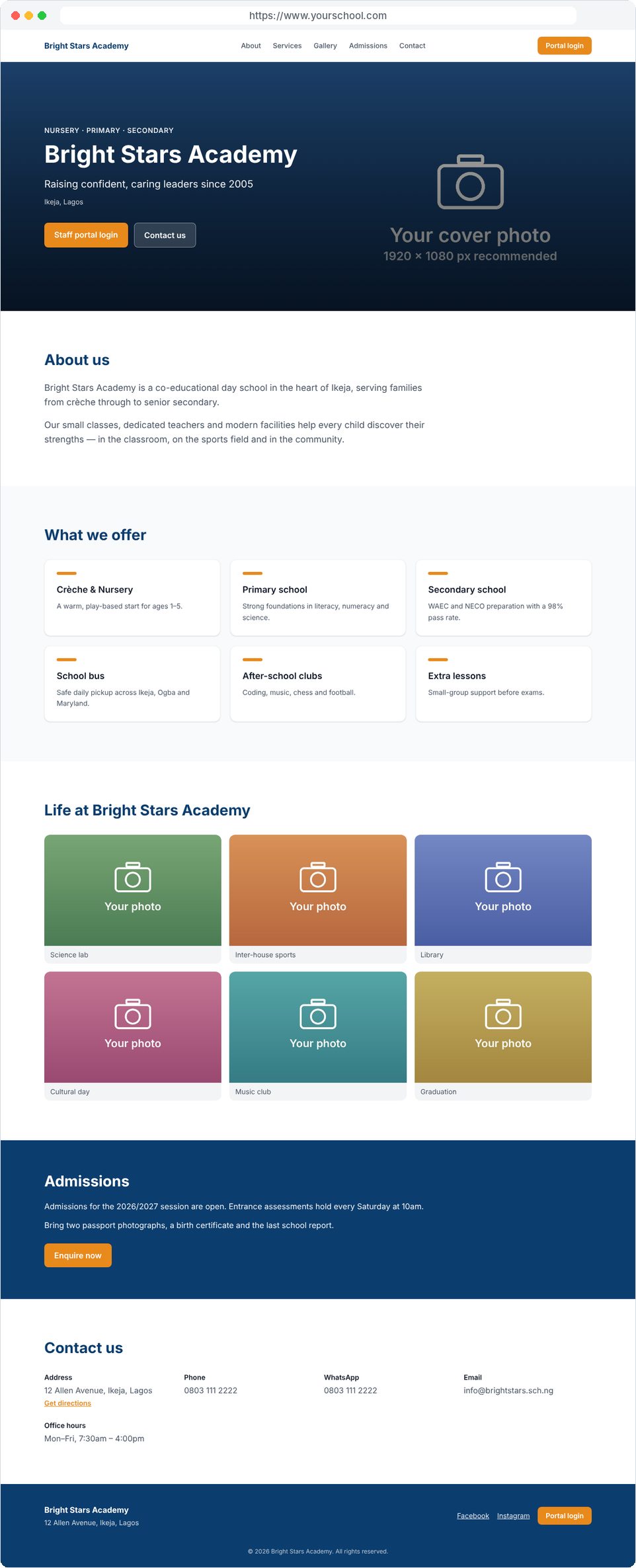
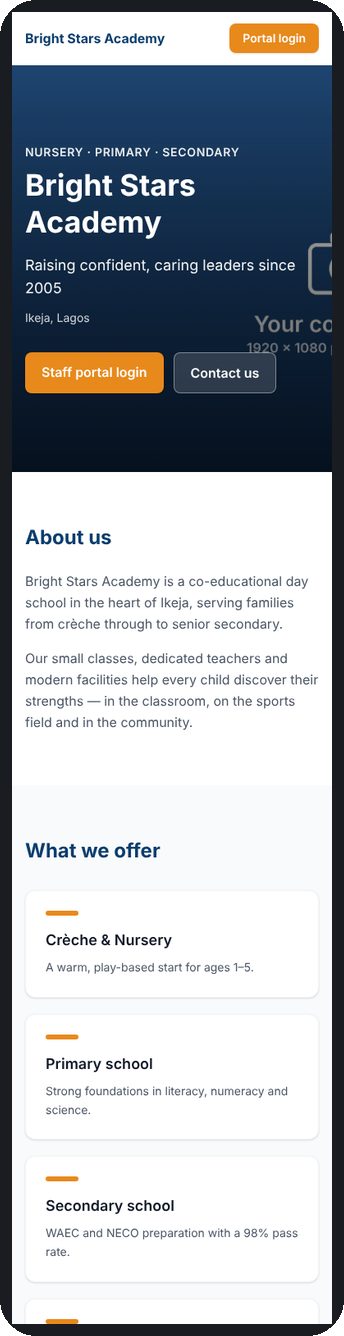
One page with your cover photo and name, About us, What we offer, a photo gallery, Admissions and Contact us, plus a Staff portal login button. It works on phones too.
Step 1 - Register (buy) your domain
You must own the domain before you can connect it - FacetEdu doesn't sell domains. Buy one from any domain registrar. Nigerian registrars (for example Whogohost, Qservers, SmartWeb or Web4Africa) sell .com.ng and .sch.ng; international ones (for example Namecheap or GoDaddy) sell .com and .org. A .sch.ng name is reserved for schools, so the registrar will ask for proof such as your school's approval letter. Keep the login for your registrar's dashboard - you need it in step 5.
Tip - save money with .com.ng: a .com.ng domain (for example yourschool.com.ng) is usually far cheaper than a .com, both to buy and to renew each year, and it tells parents straight away that you're a Nigerian school. We recommend it for most schools.
Step 2 - Switch the add-on on
Go to Settings → Custom domain & school website and turn the switch on (or click Add custom domain). The ₦30,000 invoice is created immediately and is due in 14 days. Changed your mind before paying? Turn the switch off and the unpaid invoice is withdrawn. An unpaid add-on invoice never locks your school.
Step 3 - Pay the invoice
Click Pay now on the same card, or pay it from the Billing page. Paying by bank transfer? Email the receipt to info@facetedu.com and we'll mark it paid. The add-on starts the moment it's paid and runs for 12 months. We send the renewal invoice 30 days before it ends; paying early never loses you any days.
Step 4 - Enter your domain
In the same card, type the address you want people to use and click Save. We recommend www.yourschool.com. A sub-address such as portal.yourschool.com also works if your main website is hosted elsewhere.
Step 5 - Add the DNS records at your registrar
Log in to your registrar, open the domain's DNS (sometimes called “DNS management” or “Zone editor”) and add:
| For | Type | Name / Host | Value / Points to |
|---|---|---|---|
| www.yourschool.com | CNAME | www | domains.facetedu.com |
| yourschool.com (without www) | A | @ | the IP address shown in Settings |
| portal.yourschool.com | CNAME | portal | domains.facetedu.com |
- Add both the www and the @ records so both versions of your address work.
- First delete any old A, AAAA or CNAME record with the same name (registrars often add a “parking page” record). An AAAA (IPv6) record pointing elsewhere will stop https from switching on.
- Using Cloudflare? Set the record to DNS only (grey cloud), not proxied.
Step 6 - Wait for it to go live
DNS changes usually take a few minutes to a few hours (rarely up to 48 hours). Click Check DNS in Settings to see whether your domain points to us yet. Once it does, the secure (https) address switches on automatically within about 10 minutes - you don't need to contact us. The status in Settings changes from Waiting for DNS to Live.
Step 7 - Build your school website
Open the Website page (Owners and Admins) and add your cover photo, gallery, about text, services and contact details, then switch the website on. Photo sizes:
- Cover photo: landscape, ideally 1920 × 1080 px (16:9), at least 1280 px wide.
- Gallery photos (up to 12): landscape, ideally 1200 × 900 px (4:3), at least 800 px wide.
- School logo (in Settings): square, about 400 × 400 px, under 250 KB.
- JPEG or PNG, at most 10 MB per photo. Photos are shrunk to about 200-500 KB before upload, so pictures straight from a phone are fine.
Turning it off
Turn the switch off at any time. If you've already paid, everything stays on until the end of your 12 months, then your portal goes back to your free .facetedu.com address and the website goes offline. Your website content is kept in case you switch on again.
Still stuck? We're here to help
Contact us any time - email info@facetedu.com or call/WhatsApp 0806 402 6820, or use the contact form. Tell us your school's name and what you were trying to do, and we'll walk you through it. You can also check the FAQ for quick answers. For news and tips, follow us on Instagram, X and Facebook.
See it working first, in the demo
While you wait for us - or before you try something on your own school - open the live demo. It is a full school (Demo Academy) already filled with example students, fees, payslips, stock and books, so you can see exactly how each part works and try it safely. It resets every night, so you can't break anything. Every demo login uses the password DemoPass123!
| To see | Log in as | Where to look |
|---|---|---|
| Report comments & AI help | teacher1@demo.facetedu.com | Report comments - pick JSS2 and press Draft the empty ones (the demo uses free sample wording). As the owner, Overview → Write this term’s summary. |
| Turning features on and off | owner@demo.facetedu.com | Settings → Features - the demo has everything on; switch something off and watch it leave the menu (it all comes back at the nightly reset). |
| Reports and trends | owner@demo.facetedu.com | Reports - three terms of results, subjects and attendance: Basic Science the weakest subject, Chinedu dropping, Mondays the worst day, fees behind last term, Ngozi who left this term. Press Explain these figures, or download the termly report for the board. Log in as teacher2 to see only JSS2 and their subjects, or as the accountant for fees only. |
| Needs your attention | owner@demo.facetedu.com | Overview - the alerts at the top: Hassan failing every subject, Chinedu down on last term, Gift absent three days running, JSS2 weak in Basic Science, a parent who usually pays late and fees slower than last term. Log in as teacher1 or the accountant to see their shorter lists. |
| Students, classes, report cards | owner@demo.facetedu.com | Students, Classes and a student's profile - scores and report cards are already in. |
| Attendance and timetable | teacher1@demo.facetedu.com | Attendance to mark a register; Timetable for a teacher's week. |
| Fees and invoices | accountant@demo.facetedu.com | Students - open a student to see paid, part-paid and unpaid invoices. |
| Accounting | accountant@demo.facetedu.com | Accounting - a GTBank statement with two lines to sort out, a rejected expense, the budget and reports. Log in as the owner to approve the generator repair and see last term closed. |
| Payroll and payslips | accountant@demo.facetedu.com | Payroll - two months paid and locked, a loan being paid back. Any staff login shows My payslips. |
| Inventory and store | admin@demo.facetedu.com | Inventory - stock, a staff request to approve, the asset register and store sales. |
| School clinic | nurse@demo.facetedu.com | Clinic - health profiles, the visit log and medicine given from the sick bay. |
| Library | librarian@demo.facetedu.com | Library - books with QR labels, two overdue books, a fine to bill, a reservation ready to collect and a shelf check. Try Lend & return. |
| Hostel (boarding) | owner@demo.facetedu.com | Hostel - two houses, an exeat waiting for approval, one boarder late back, the gate, Saturday's visiting day, property checks (Lawal going home without two things), inspections (Room B1 low twice) and the incident log. Log in as teacher1 (a house mistress) to take a roll call or record an incident. |
| Tuck shop and pocket money | tuckshop@demo.facetedu.com | Tuck shop - find Amaka, tap a snack and sell. Kemi's mother set a ₦500 daily limit; Ifeoma is nearly out of money. Log in as the owner to see every wallet and the day's sales, or as the parent (parent@demo.facetedu.com) to top up. |
| School bus | admin@demo.facetedu.com | Transport - routes, the bus aunty's trip screen, vehicle papers and fuel logs. |
| Live bus tracking | admin@demo.facetedu.com | Transport → Live - the demo bus on Ikeja - Ogba drives its route all day. Open a finished trip to see its path. As the parent (parent@demo.facetedu.com), open Efe → School bus to see how far away it is. |
| Staff attendance | teacher2@demo.facetedu.com | Staff attendance - clock in; as the admin, see who is late and arrange cover. |
| School website | owner@demo.facetedu.com | Website - photos, about text and services. |
| Activities & electives | owner@demo.facetedu.com | Electives - four clubs with their prices, choices already made (Amaka's mother chose hers in the parent portal). Billing → Add elective fees puts them on each term invoice. |
| Admissions | admin@demo.facetedu.com | Admissions - applications for next session at every stage: four waiting (two for days), an exam next week, last Saturday's exam marked with offers out, and Precious Okon accepted and ready to enrol. Log in as teacher1 to type exam scores. Try the parent's form at demo.facetedu.com/apply. |
| Parent portal (school side) | owner@demo.facetedu.com | Parent portal - parents and who has signed in, student PINs, release this term's results, notices and what parents can see. |
| Parent portal (as a parent) | parent@demo.facetedu.com | Open demo.facetedu.com/parent/login, type this email and use the code shown on screen. Folake sees Amaka (a boarder - try asking for an exeat) and Efe. |
| Student portal | DEMO-001 (PIN 246810) | Open demo.facetedu.com/student/login - Amaka sees today's lessons, her results, notices and library books. Under Tests she can sit the Mathematics weekly quiz and practise Maths or English; under Lessons she can read the fractions notes and hand in the Fractions homework. |